
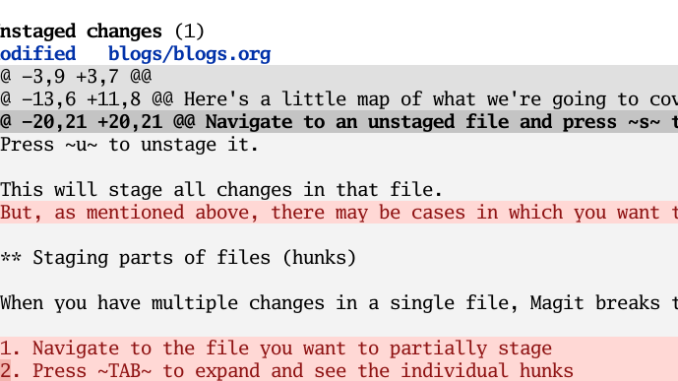
As I mentioned in my Git For Writers book, there may be situations in which you want to only stage part of a file instead of committing the whole thing. I didn’t cover the process in detail because it is more of an advanced technique. However, if you use Magit, it’s much easier to do, and being more selective in your staging helps you write better commit messages.
Here’s a little map of what we’re going to cover in this article:
- Basic file staging in Magit
- Staging parts of files (hunks)
- Staging individual lines
- Commit changes as usual
- Why this matters for writers
Basic file staging in Magit
This is the most basic way to stage changes in Magit.
In Emacs, run M-x magit-status or press C-x g (if you have the default keybinding). This opens the status buffer showing all your changes. You will see a single file or list of files depending on what you edited.
Navigate to an unstaged file and press s to stage it. Press u to unstage it.
This will stage all changes in that file. However, maybe you want to be more selective?
Staging parts of files (hunks)
When you have multiple changes in a single file, Magit breaks them into “hunks”—logical chunks of changes.
- Open the
magit-statusbuffer - Navigate to the file you want to partially stage
- Press
TABto expand and see the individual hunks - Navigate to a specific hunk
- Press
sto stage just that hunk (oruto unstage)
Staging individual lines
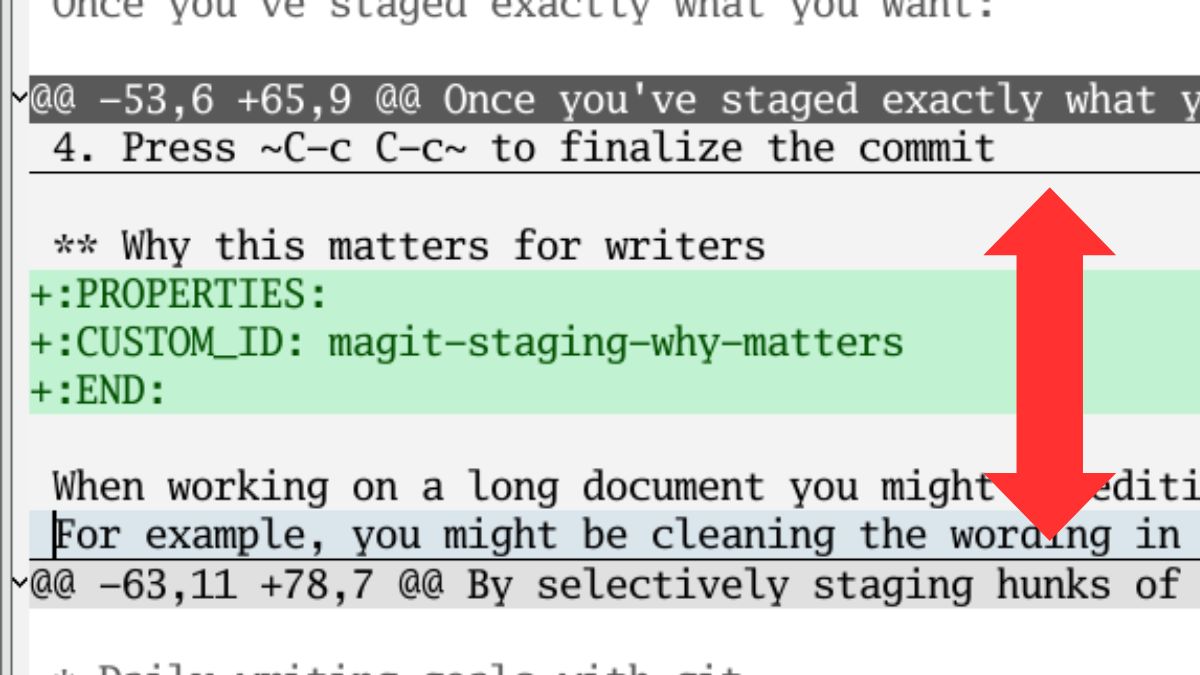
This is where Magit really shines. You can stage a hunk or even specific lines within a hunk:
- Navigate to the hunk containing the lines you want
- Press
TABto expand the hunk and see the individual lines - Move your point to the specific line
- Press
sto stage it
You can also use visual selection: select multiple lines with C-SPC and press s to stage the selection.
Commit changes as usual
Once you’ve staged exactly what you want:
- Press
cto open the commit menu - Press
cagain to create a commit - Write your commit message
- Press
C-c C-cto finalize the commit
Why this matters for writers
When working on a long document you might be editing multiple sections. For example, you might be cleaning the wording in a dialogue scene, then remember to jump over and fix some issues in another scene. So, toward the end of your session, you will have edits in different places, which can make it more difficult to write a terse commit message.
By selectively staging changes you can more easily go back through your work and analyze what you did.
Thanks! I’ve used Magit for years, but didn’t know anything about this!