
Copying files is one of those everyday operations you will do constantly. Whether it’s backing up a config before you mess with it or duplicating a template to start a new project, cp is probably one of the first commands any of us learned.
Copying files can be hazardous if you don’t know what you’re doing. Personally, I find it’s often easier to just copy and paste something with Thunar. Having a GUI helps, but for scripting or more complicated copy actions you got to get your command line judo going or open your master Emacs editor.
In Emacs, copying is handled through dired, which gives you a visual, interactive approach to the same operation. You can see exactly what you’re copying and where it’s going, which can save you from those moments where you accidentally overwrite something you didn’t mean to.
As in the previous article in the series, we are going to compare and contrast the UNIXy way of copying files with the Emacs way. Is one way better than the other? I present both, and leave it up to you to decide.
UNIXy Way
The cp command is straightforward. Give it a source and a destination, and it does exactly what you’d expect. Add -r for directories, and -v if you want confirmation of what happened.
cp source.txt destination.txt- Copy a single file
cp -r source_dir/ destination_dir/- Copy a directory recursively
cp -v notes.txt ~/backups/- Copy with verbose output
Example output:
$ cp -v notes.txt ~/backups/
'notes.txt' -> '/home/user/backups/notes.txt'

$ cp -rv projects/ /tmp/projects-backup/
'projects/' -> '/tmp/projects-backup/'
'projects/main.py' -> '/tmp/projects-backup/main.py'
'projects/utils.py' -> '/tmp/projects-backup/utils.py'
Emacs Way
In dired, copying is a two-step process: mark the files you want, then tell Emacs where to put them. If you have two dired buffers open side by side, Emacs is smart enough to suggest the other buffer’s directory as the default destination, which mimics the two-panel file manager workflow.
C-x dto open dired- Mark file with
m - Press
Cto copy - Enter destination path
- Or:
M-x copy-fileand enter source/dest paths
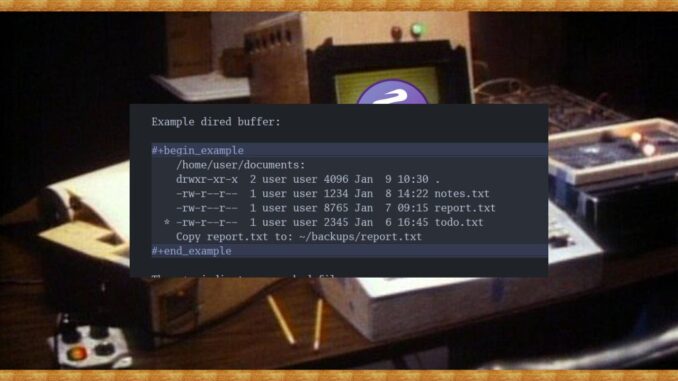
Example dired buffer:
  /home/user/documents:
  drwxr-xr-x  2 user user 4096 Jan  9 10:30 .
  -rw-r--r--  1 user user 1234 Jan  8 14:22 notes.txt
  -rw-r--r--  1 user user 8765 Jan  7 09:15 report.txt
* -rw-r--r--  1 user user 2345 Jan  6 16:45 todo.txt
  Copy report.txt to: ~/backups/report.txt
The * indicates a marked file. After pressing C, Emacs prompts for the destination in the minibuffer. You can also mark multiple files and copy them all in one go, something that’s just as easy with cp but here you get the visual confirmation of exactly which files you’ve selected.
As always, thank you for reading. If you have any comments or questions feel free to drop them below. Also, check out my downloadable DRM-free eBooks:
Leave a Reply