

Lord knows I have trouble finding files sometimes. Over the years I’ve tried lots of schemes in Org Mode and elsewhere for the sole purpose of keeping track of stray items. Using includes in Org Mode has been helpful, but I didn’t have a way of jumping to those included files for quick access. Until now! Read on.
In this article, we’ll look at:
Table of Contents
Let’s get into it.
FFAP – Find file at point
For a refresher on Org includes for those who don’t know, I’d advise clicking on that link above or watching my recent video on this topic. Basically, includes let you include file contents from elsewhere in your system into a working document.
This can be useful for gathering individual files, like sections of a book, into a master document, or including bits of code from live files as examples.
Using ffap to jump to files
However, you may have noticed, these include lines don’t resolve as hyperlinks. So you cannot simply click an included file and jump to it.
This is where you can make use of the ffap (find file at point) command. It’s an interactive function that does exactly what it says: finds the file at your point.
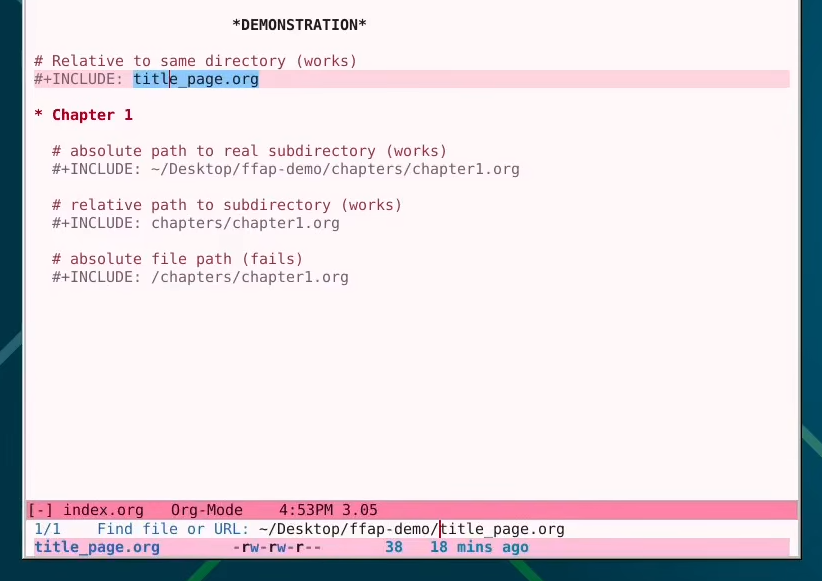
If the filepath under your point resolves cleanly to a file, absolutely or relatively, you will have the option to open that file presented to you in the minibuffer.
File paths passing and failing
Here’s a rundown of how you can write out your “include” statements in various filepath styles and get the result you want. This example assumes your working directory has an Org master file, and a relative subdirectory or “chapters”. The last instance fails because there would be no such subdirectory at the root level.
| Path | Result |
|---|---|
| title_page.org | PASS |
| ~/Desktop/ffap-demo/chapters/chapter1.org | PASS |
| chapters/chapter1.org | PASS |
| /chapters/chapter1.org | FAIL |
If you enjoyed this little article, you may want to check out the following.
- I’m looking for beta readers for my hacker novel, Hard Pass
- Check out my eBooks: Emacs For Writers and Git For Writers
- Subscribe to my newsletter for occasional updates from me about similar topics
As always, thanks for reading, see you next time.
Leave a Reply