
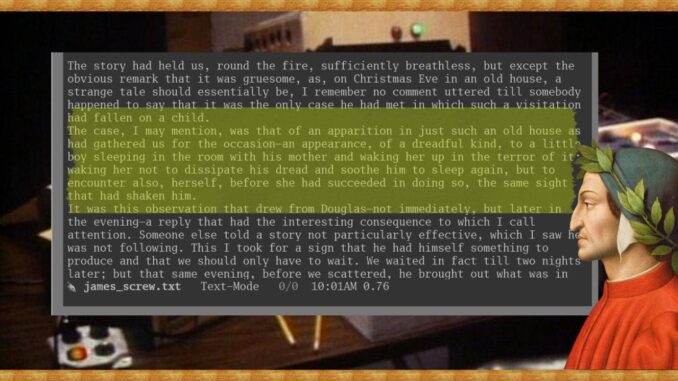
Everyone knows I love finding whatever Emacs tricks and dodges I can to help writers. I wrote an article a while back about the benefits of writing in one-sentence-per-line (OSPL) style. No need to re-hash the whole article, but suffice to say this style can help you organize and transpose sentences, get a quick visual cue for sentence length and complexity, as well as clearer version control diffs, etc.
Transitioning over to this style from the standard paragraph-per-line style can be a little disorienting at first, especially if your longer soft-wrapped sentences are starting to ramble into two or three lines. This where hl-line-mode in Emacs can be a big help. Most text editors have a highlighting feature to help you focus on the current working line, and Emacs is no different. In this article, we’ll take a look at the built-in highlighting mode in Emacs and all the hows and whys you need to know.
Before we get into it, I will mention that if you are a power writer, and want to join the elite of Emacs users, you should check out my downloadable DRM-free eBooks here:
Let’s dig into hl-line-mode now.
Table of Contents
What is hl-line-mode?
hl-line-mode is a built-in Emacs minor mode that highlights the line containing your point. That basically means the line where your cursor is sitting will be highlighted. Different themes will have different highlight colors that fit nicely within the current palette, so no need to worry about getting an ugly yellow caution line in your Emacs.
The mode has been part of Emacs since version 21, so it is already installed in your editor. No additional packages required.
Why enable it?
The author Henry James (1843-1916) is famous for writing egregiously long sentences extended with prepositional phrases, nested clauses, and deferred verbs. Contemporary writers shun these kinds of sentence steroids because they can make lines difficult for readers to parse. Nevertheless, it’s a strong style that can be employed strategically, particularly in sections that are meant to pull the reader’s focus in or create disorienting special effects. On the flip side, done well, longer sentences can lull readers through luxurious passages that are a pleasure to write and read. So, if you want to use this style, hl-line-mode paired with OSPL can be a secret weapon in your text editor arsenal.
With highlighting enabled, you get a whisper-subtle visual indicator of your position in the buffer, making it easier to track where you are in a large document, but also helping you focus on a single line.
Beyond OSPL, the mode benefits anyone working with large files. Writers can visually anchor themselves in a long draft while programmers get a persistent cue for the current line in dense code, which pairs nicely with line numbers. Whether writing or programming, this mode can also help you avoid unwanted line breaks.
How to enable it
To enable hl-line-mode, you can add one line to your Emacs config:
(global-hl-line-mode 1)
This activates highlighting in every buffer.
If you only want to try it interactively in the current session, run:
M-x global-hl-line-mode
You can also enable it per-buffer with M-x hl-line-mode if you prefer selective use.
As I mentioned above, I like writing in OSPL style, so having highlighting enabled, particularly when working on some long Henry James type sentences it can really help me isolate my focus without getting distracted by all the text surrounding that sentence.
Leave a Reply